Table of Contents
Technician On My Way Notification: Setup & Usage
 Updated
by Jennifer Trower
Read Time: 10 mins
When a technician finishes one job and heads to the next, the contacts at the next job often have no idea when to expect them. The On My Way notification closes that gap. It’s a triggered message, sent by SMS, email, or both, that your team sends on demand from the Jobs table, from the job completion window, or from the Sonar Field Tech app.
Each job can receive one On My Way notification. If the job is rescheduled, the notification can be sent again. Sonar records the time each notification was sent, so dispatchers can see at a glance whether contacts have been told their technician is on the way.
Prerequisites
- Outbound SMS is set up in your instance. See Using Outbound SMS, if you’re sending by SMS.
- A signature is set up if you’re sending by SMS.
- The account’s contacts have a mobile phone number that can receive SMS or an email address for email messages.
- The account is subscribed to the messaging category used by the triggered message.
- A triggered message is set up using the A technician notifies a customer they are en route to the next job trigger. Setup is covered below.
Permissions
Before getting started with the feature, your user roles will need to be adjusted to account for the permissions required to use the Technician On My Way notification feature.
Feature Details
How the notification works
The On My Way notification is a triggered message your team sends when a technician is headed to a job. It goes to the account’s contacts by SMS, email, or both, depending on how the triggered message is set up.
Keep these rules in mind:
- The notification can be sent once per job.
- If the job is rescheduled, the notification can be sent again.
- The ETA is the number of minutes until the technician arrives. Sonar pre-fills an estimate based on the travel time from the technician’s previous job to this one, and any message that includes an arrival time requires an ETA.
- Notifications are queued when sent, so contacts receive them shortly after.
Setting up the triggered message
Use this section to create the message the account’s contacts receive.
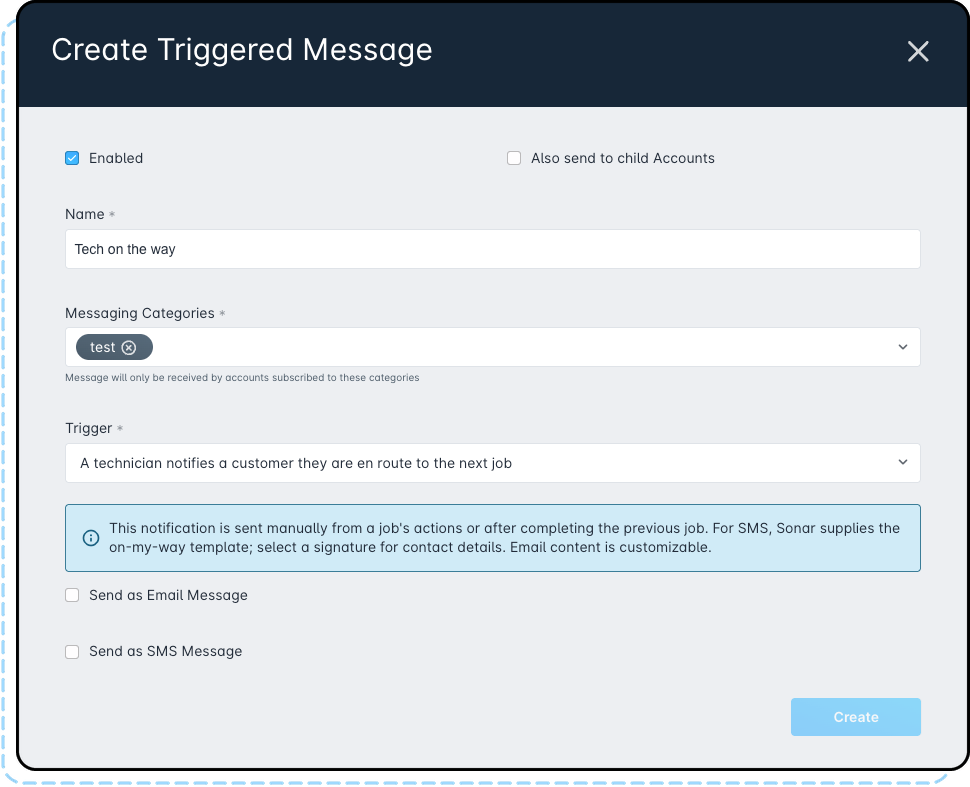
- Go to Communication Tools > Configure > Triggered Messages and click Create.
- Check Enabled and enter a Name.
- Select one or more Messaging Categories. The message will only be received by accounts subscribed to these categories.
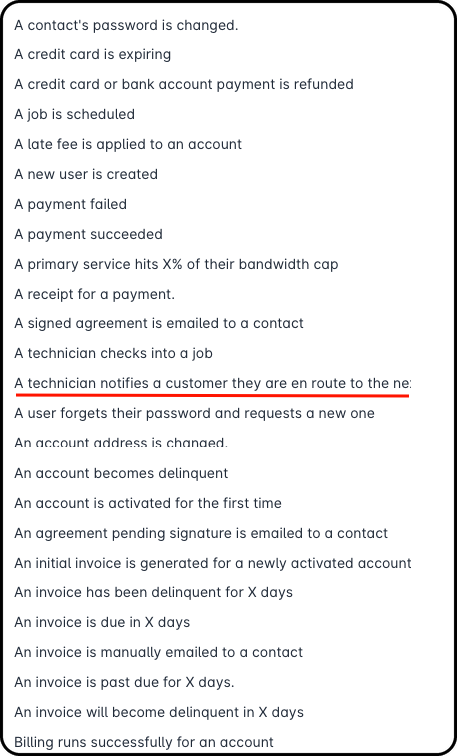
- In the Trigger field, select A technician notifies a customer they are en route to the next job.
- Check Send as SMS Message, Send as Email Message, or both.
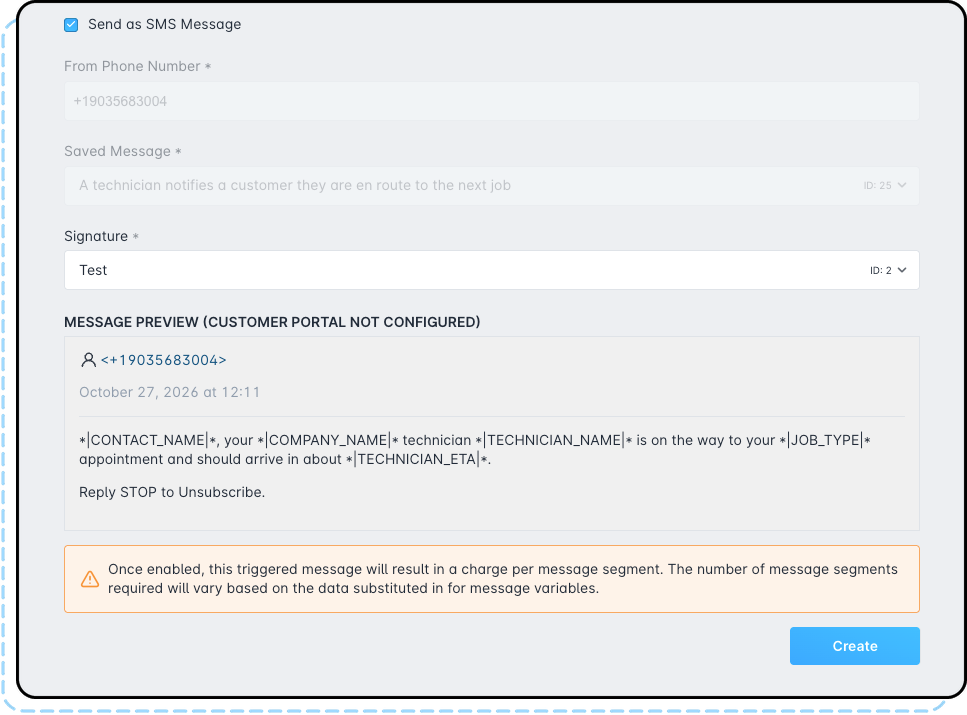
- For SMS, select a Signature. Sonar fills in the From Phone Number and the On My Way message automatically.
- For email, fill in the email fields as described in Email wording below.
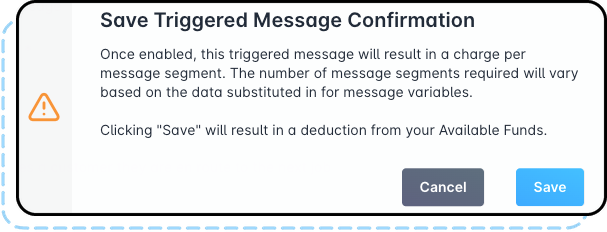
- Click Create.
SMS wording
The SMS wording for this trigger is supplied by Sonar and can’t be changed. The message reads:
*|CONTACT_NAME|*, your *|COMPANY_NAME|* technician *|TECHNICIAN_NAME|* is on the way to your *|JOB_TYPE|* appointment and should arrive in about *|TECHNICIAN_ETA|*. Reply STOP to Unsubscribe.
Email wording
Email content can be customized. When Send as Email Message is checked, fill in the following:
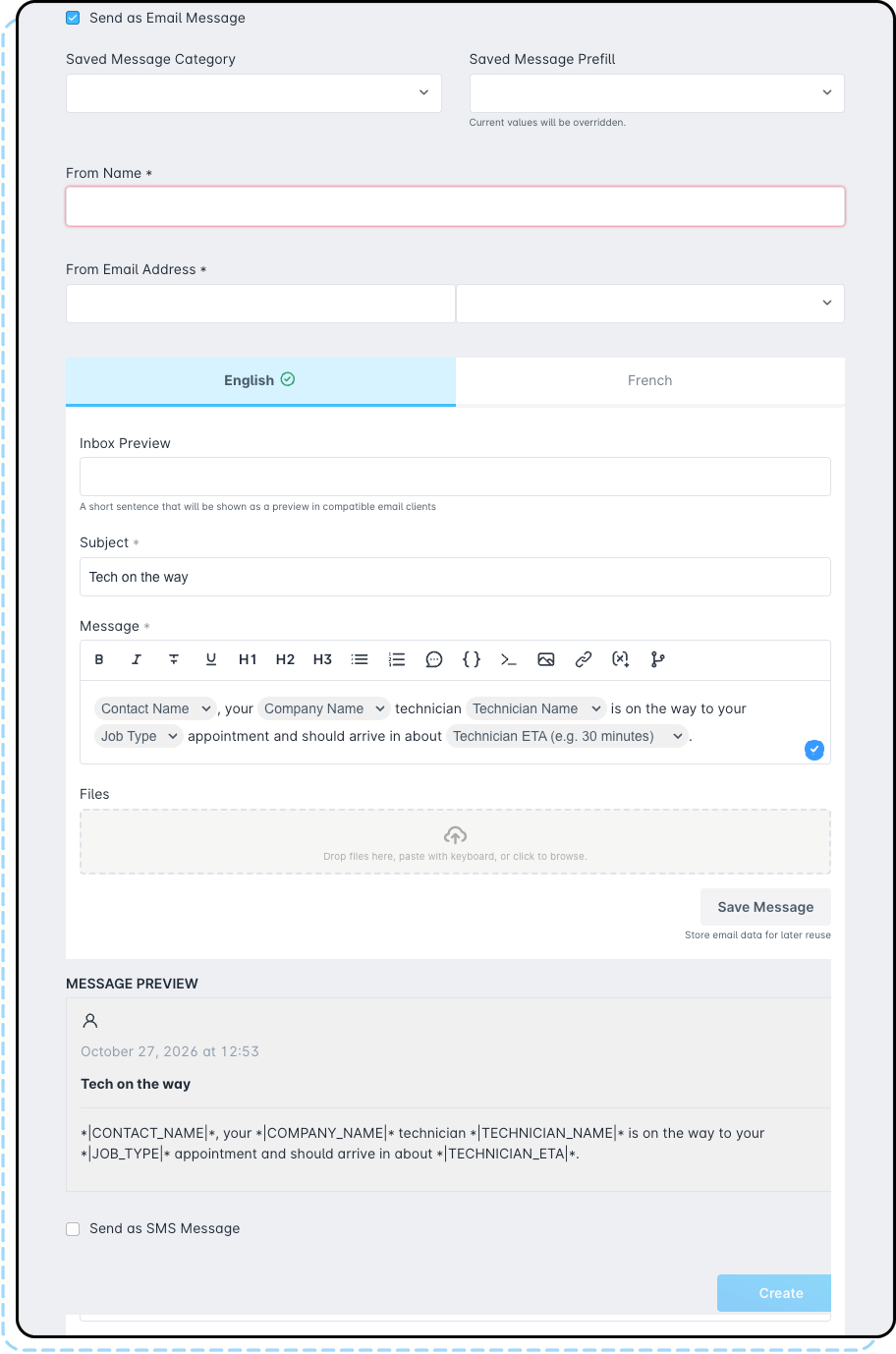
- Optionally, choose a Saved Message Category and a Saved Message Prefill to start from a saved message. Selecting a prefill overrides any values already entered.
- Enter a From Name and a From Email Address.
- In the English tab, enter a Subject and a Message. You can also add an Inbox Preview, a short sentence shown as a preview in compatible email clients.
- If you send messages in French, fill in the French tab as well.
- Optionally, attach Files.
To include the technician’s arrival time, click the variable button (x) in the message toolbar and select Technician ETA. Variables appear in the message as labeled chips, and the preview shows the variable codes, such as *|TECHNICIAN_ETA|*. The ETA displays in minutes, for example, “30 minutes.”
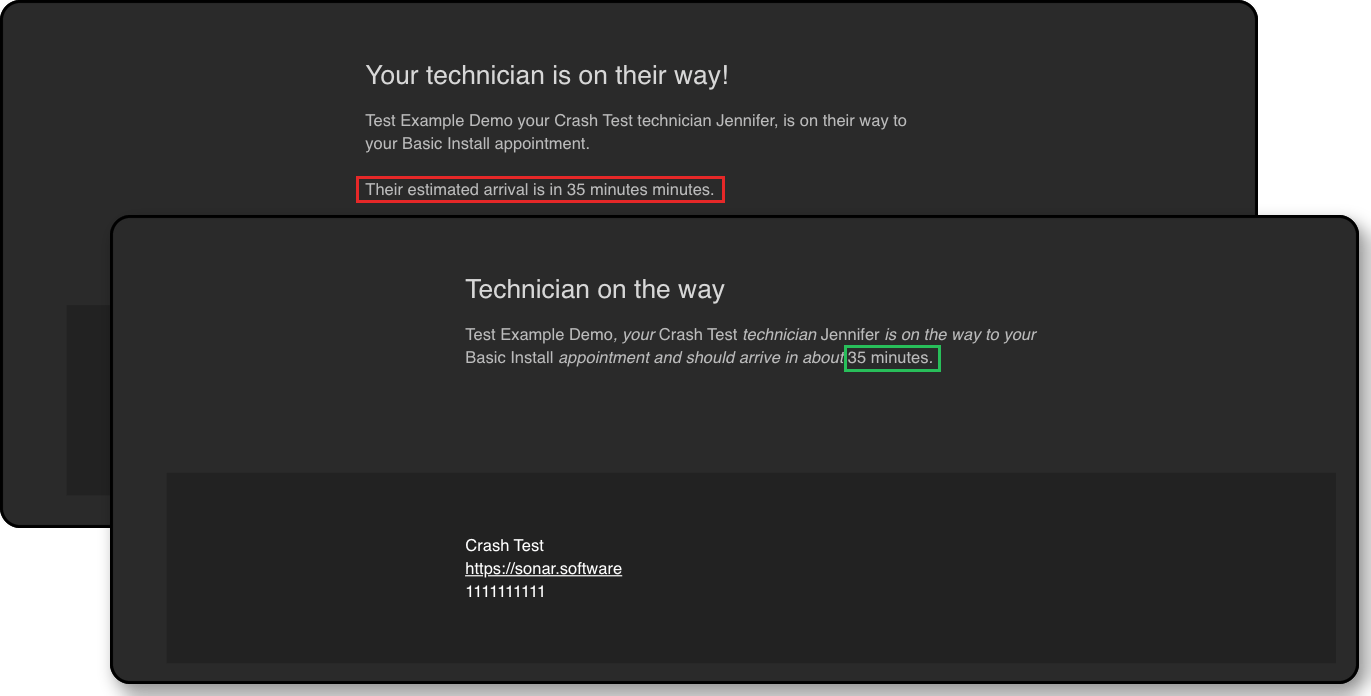
*|TECHNICIAN_ETA|* variable, enter the number of minutes until arrival every time you send the notification.Sending from the Jobs table
Use this option when a dispatcher or office user sends the notification on the technician’s behalf.
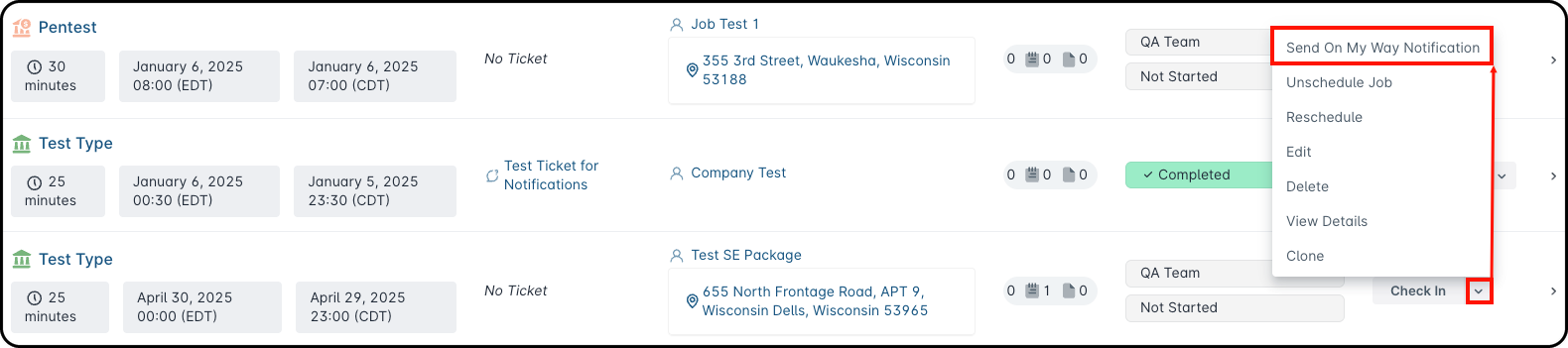
- Go to Scheduling > Jobs Table.
- Find the job. It must be scheduled and not yet completed.
- Click the arrow next to Check In and select Send On My Way Notification.
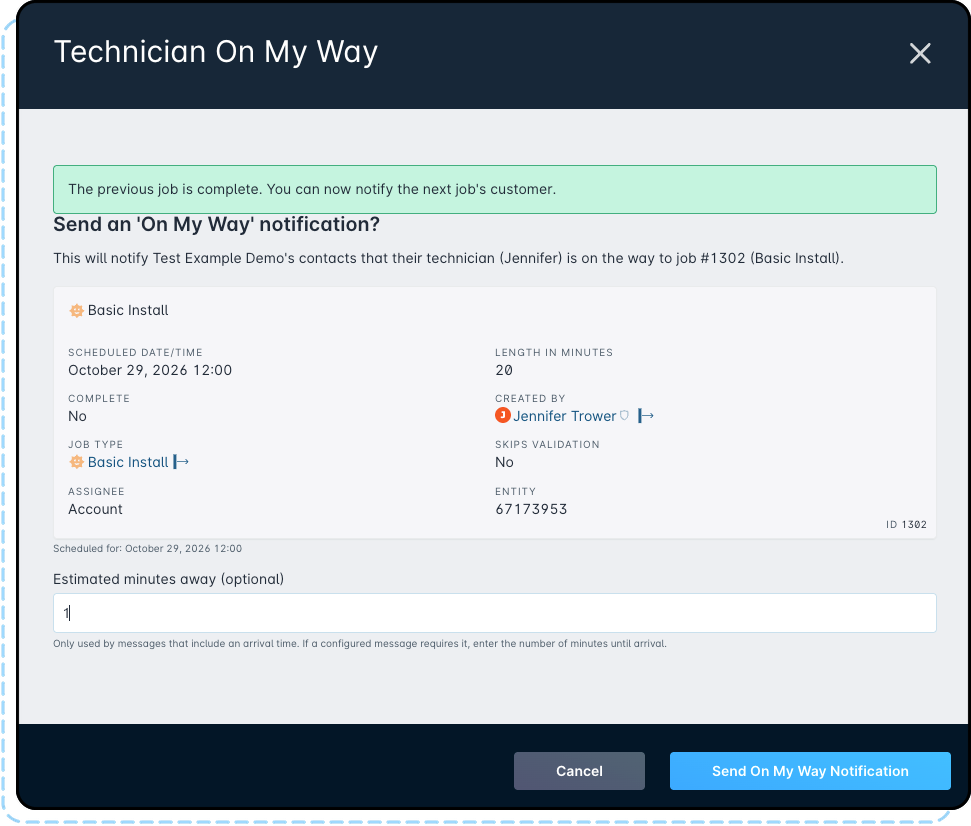
- In the Technician On My Way window, review the job details. Sonar pre-fills Estimated minutes away (optional) with the travel time from the technician’s previous job. Adjust it if needed.
- Click Send On My Way Notification.
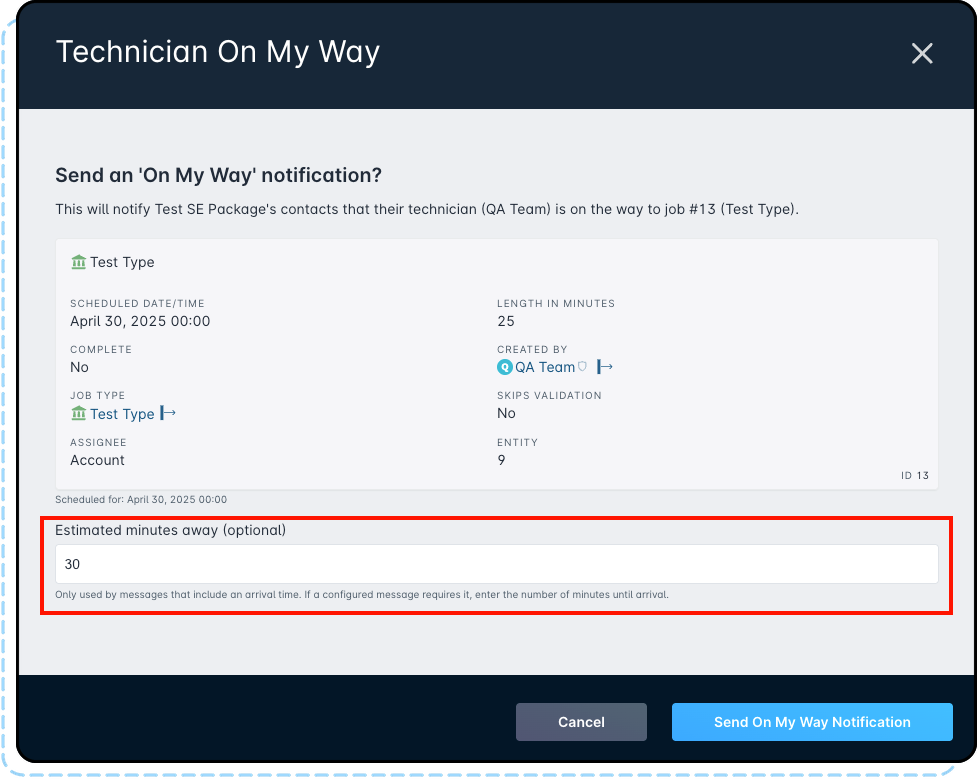
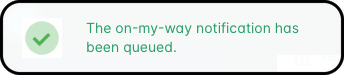
- A confirmation appears saying the notification has been queued.
Sending from the job completion window
Use this option when the technician completes a job and is heading straight to the next one. The notification goes to the contacts at the technician’s next scheduled job.
- Open the job the technician is finishing and click Complete.
- Fill in the completion details as usual.
- Check Notify the next job’s customer that the technician is on the way.
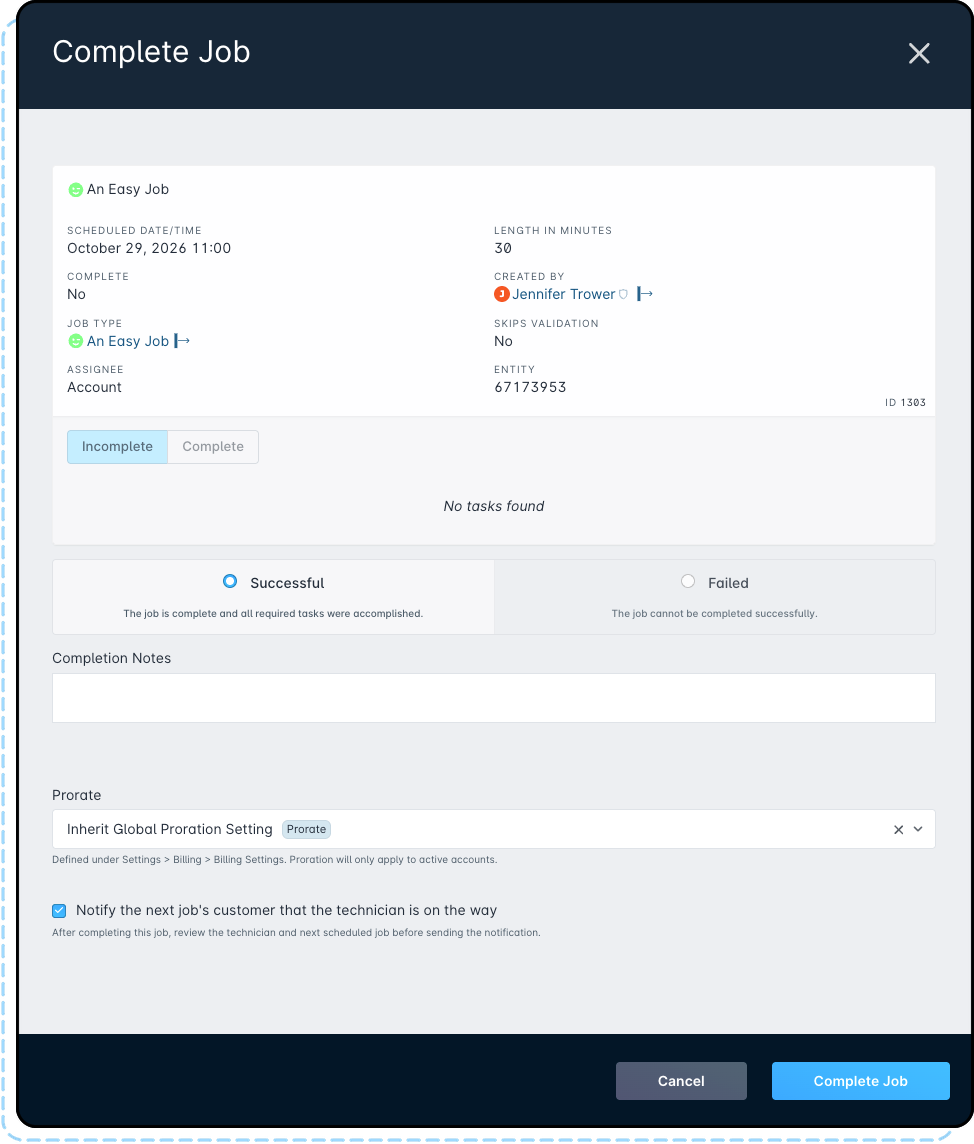
- Click Complete Job.
- The Technician On My Way window opens with a message saying the previous job is complete. Review the technician’s next job. Sonar pre-fills Estimated minutes away (optional) with the travel time from the job just completed to the next one. Adjust it if needed.
- Click Send On My Way Notification.
Sending from the Sonar Field Tech app
Use this option when the technician sends the notification from the field. The technician can send it when heading to a job, or right after completing the previous one.
When heading to a job
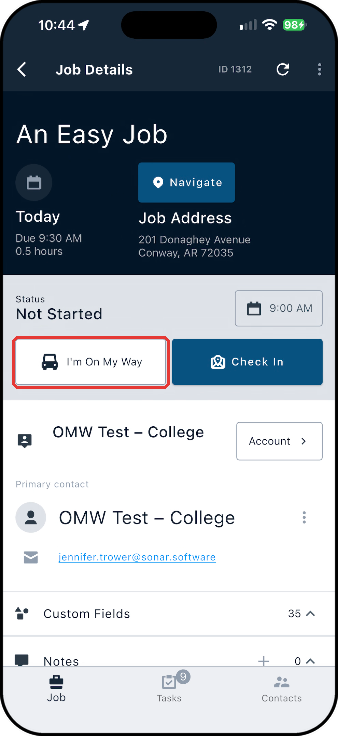
- In the Sonar Field Tech app, open the job from the Job Schedule.
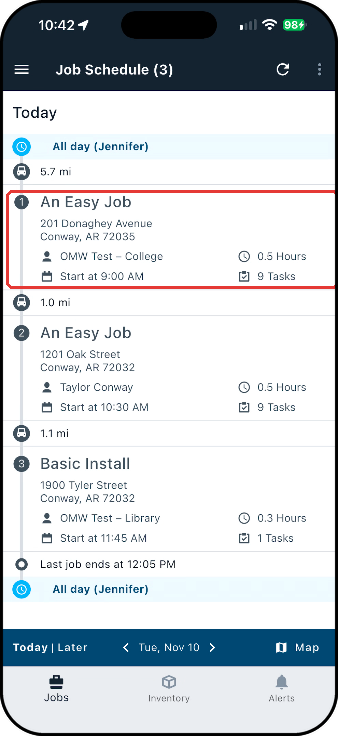
- Tap I’m On My Way.
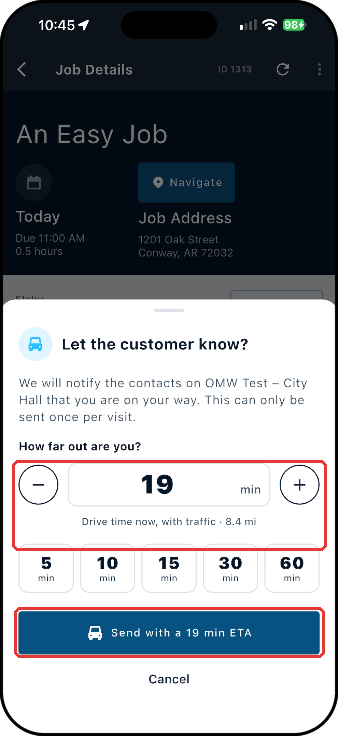
- On the Let the customer know? screen, review the ETA and adjust it if needed. See Setting the ETA in the app below.
- Tap Send with a number min ETA.
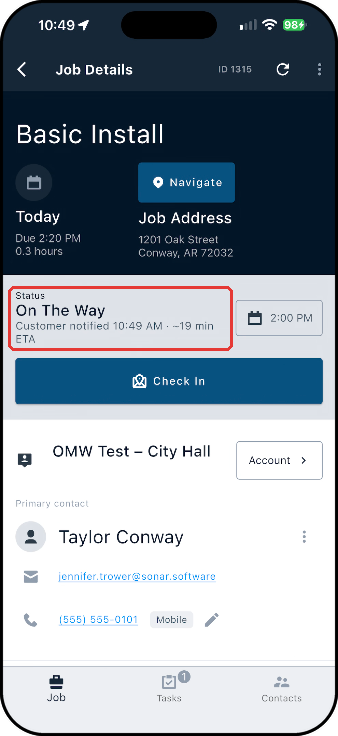
The job’s status changes to On The Way, and the job shows the time the customer was notified along with the ETA.
After completing a job
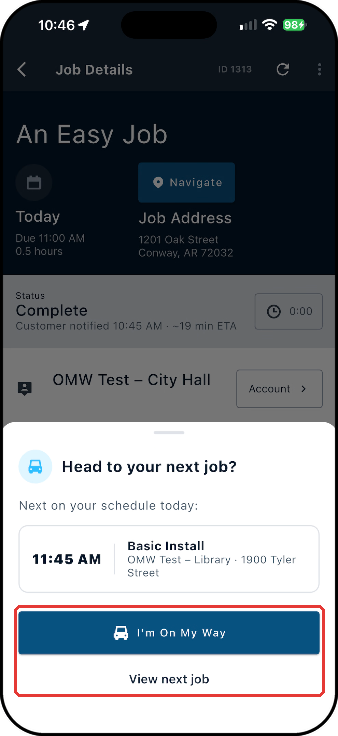
When the technician completes or fails a job, the app asks Head to your next job? and shows the next scheduled job’s time, job type, account, and address.
- Tap I’m On My Way. To open the job first, tap View next job.
- Review the ETA and adjust it if needed.
- Tap Send with a number min ETA.
Setting the ETA in the app
The app estimates the ETA for you:
- Location access turned on: the estimate is based on the technician’s current location. The screen shows the drive time with traffic and the distance to the job.
- Location access turned off: the estimate uses the travel time from the technician’s previous job, the same as in the web app.
While it’s estimating, Estimating drive time… appears under the minutes field. If no estimate comes back, the field stays empty. Set the ETA in one of these ways:
- Tap a quick pick: 5, 10, 15, 30, or 60 minutes.
- Use the − and + buttons to change the time in 5-minute steps.
- Type a number from 1 to 480.
Location access
After a notification is sent, the app may ask Always allow location? Allowing it lets the app tell when the technician arrives at the job and prompt them to check in. The app only collects location while the technician is on the way to a job, until they check in.
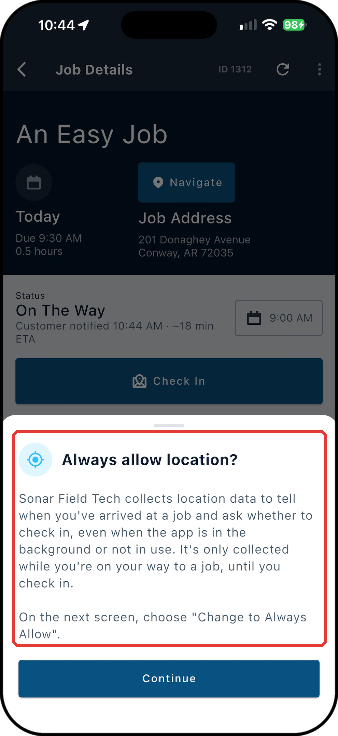
After the notification is sent
On iPhone, a live countdown to the technician’s arrival appears on the lock screen and in the Dynamic Island, based on the ETA they entered. It shows the job, the address, and the time remaining. The countdown is only a reminder for the technician. It doesn’t send anything or change the job. Tapping it opens the job.
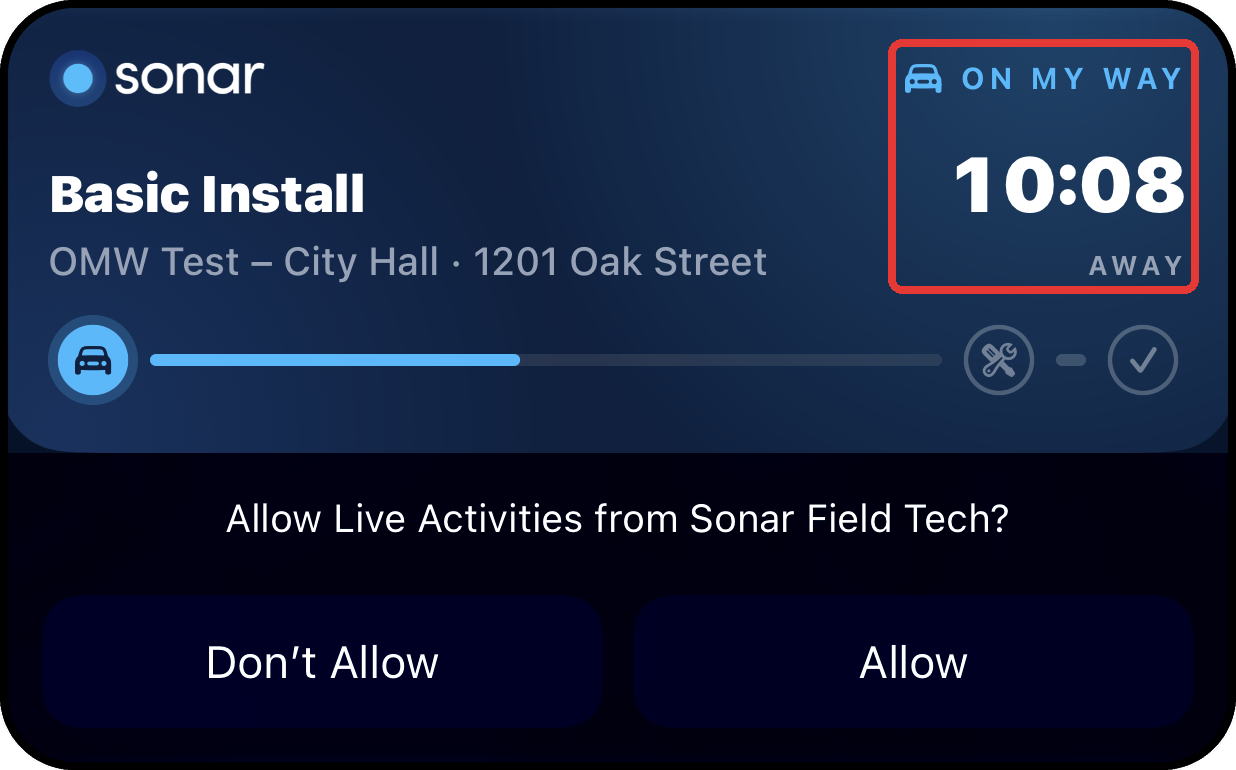
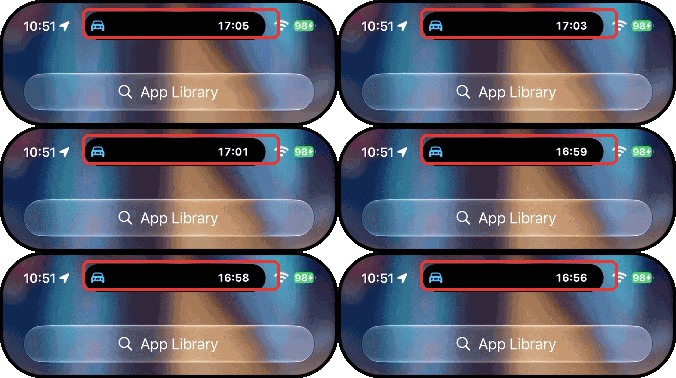
Seeing when a notification was sent
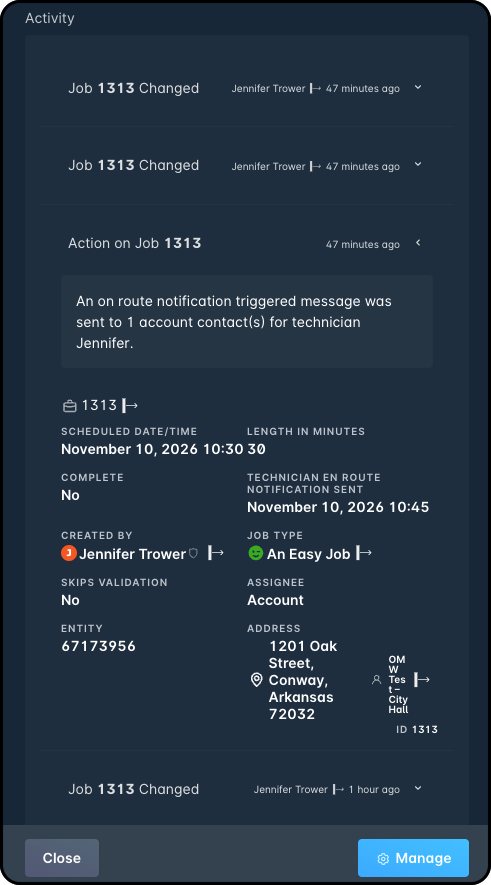
Once the notification is sent, Sonar records it in three places:
- Job History: an Action on Job entry says an on route notification triggered message was sent to the account’s contacts, and names the technician.
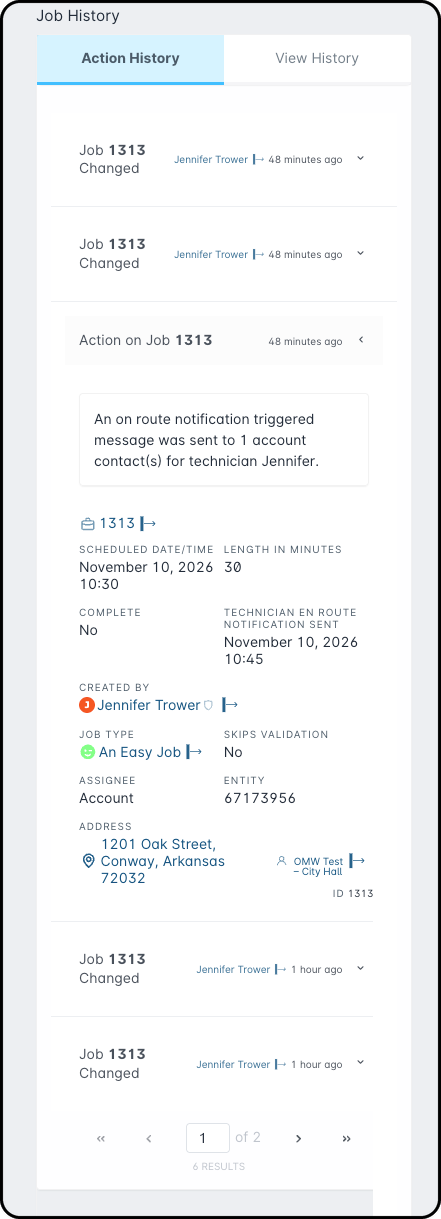
- Job details: the Technician En Route Notification Sent field shows the date and time in the Job History entry and in the job side panel’s Activity section.
- Sonar Field Tech app: the job details screen and job list show Customer notified with the time.
To see the message itself:
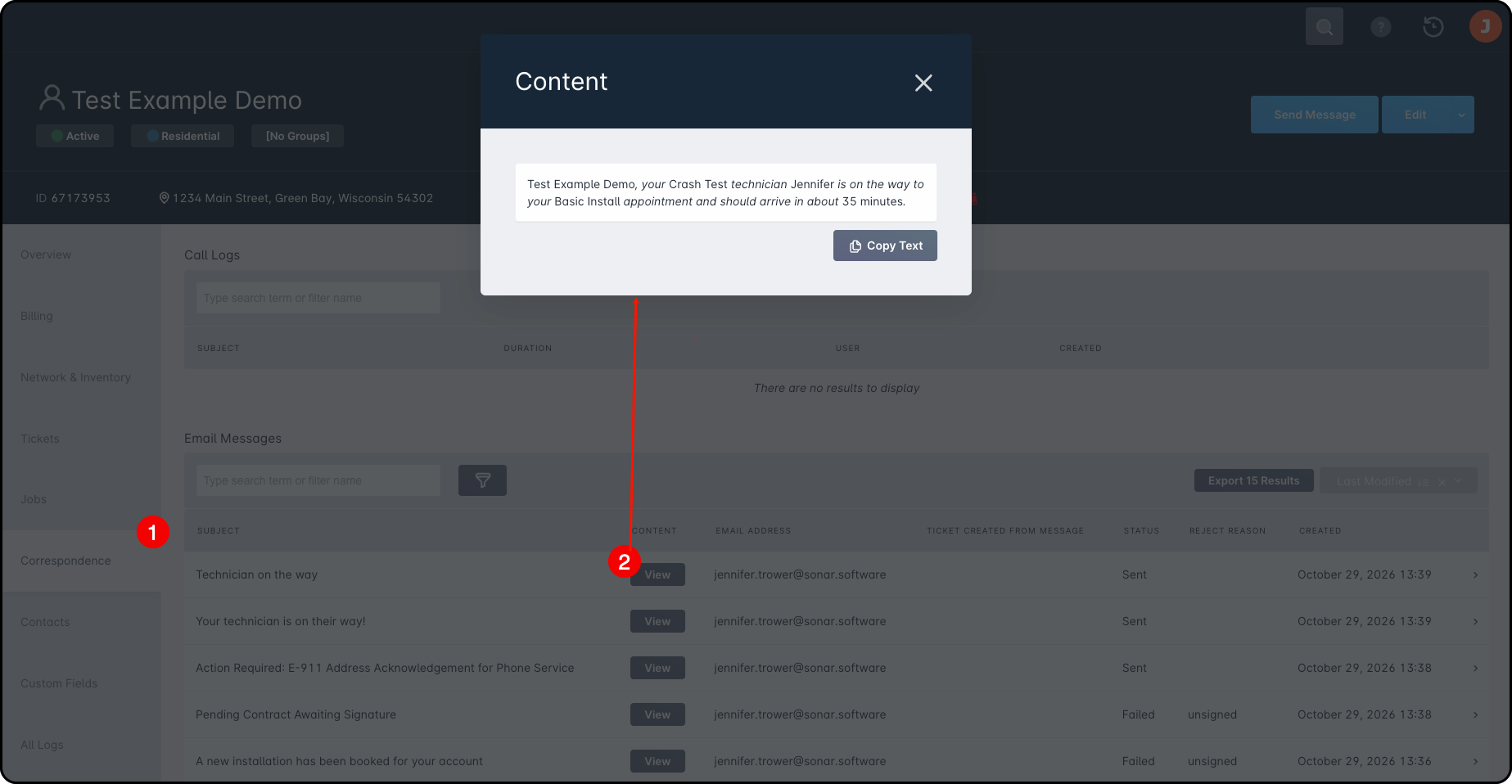
- Open the account and go to the Correspondence tab.
- Under Email Messages, find the On My Way message and click View in the Content column. The message text opens in the Content window, where you can click Copy Text to copy it.
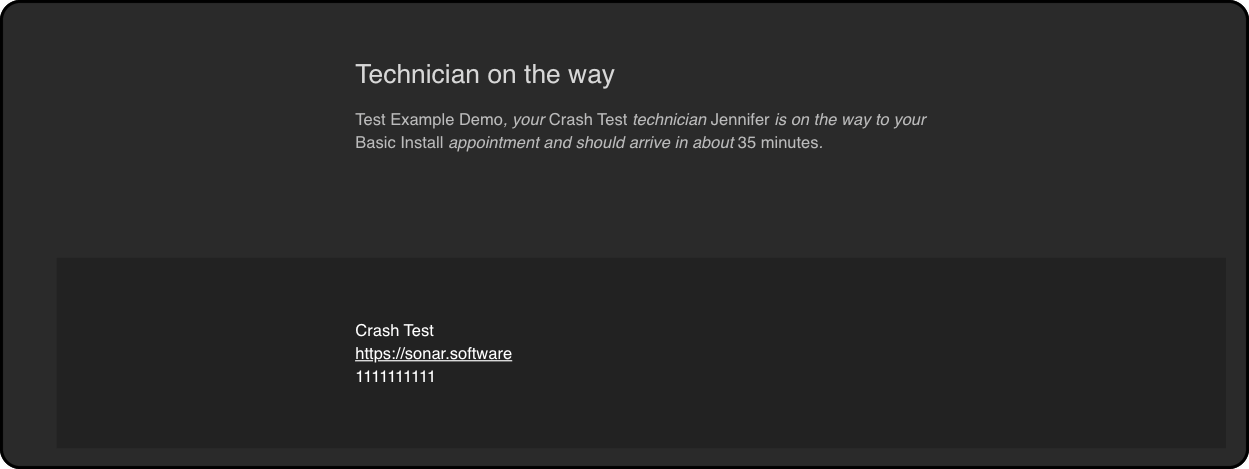
Here’s an example of the email a contact receives:
Sending again after a reschedule
If a job is rescheduled after the notification was sent, the notification can be sent again for that job using any of the methods above.
Related Articles
- Trigger Explanations
- Triggered Messages: Setup
- Email Variables & Conditions
- Using Outbound SMS
- Scheduling Table View: Overview
- The Sonar Field Tech App
Need a hand?
Our Support Team is here to help