Our Products & Services
Getting Started
First Time Setup
Getting Started with Inventory
Getting Started With Jobs
Getting Started with Accounts
Getting Started with Ticketing
Setting Sonar up for Billing
Baseline Configuration
How To: Using Sonar's Customer Portal
User Specific Resources
Accounts
Account Groups: Overview & Example Use Cases
Account List View: Overview
Account Management View: Overview
Account Overview Customization
Account Statuses: Overview & Example Use Cases
Account Types: Overview & Example Use Cases
Anchor & Linked Serviceable Addresses: Overview and Best Practices
Archiving an Account: Overview
CPUC Fixed Broadband Deployment by Address
Child Accounts: Best Practices & How Tos
Creating a New Account
Direct Messages: Overview
Disconnecting an Account
Disconnection Reason Management: Overview
Exploring Task Groups
FCC Broadband Data Collection (BDC) Filings: How Sonar Can Help
FCC Data Exports: General Overview and Usage
Future Serviceable Addresses: Overview
Lead Intake Form Processing
Notes: Best Practices & Use Cases
Scheduled Events: Overview & Use Cases
Serviceable Addresses: Overview and Usage
Specify Account ID upon Creation
Tasks & Task Templates: Overview
Using Sonar's FCC Broadband Label Generation Tool
Billing
ACH Batching: Overview
Accounts in Vacation Mode
Avalara: Overview & Setup
Batch Payments & Deposit Slips: Overview
Billing Calculator
Billing Defaults
Billing Settings
Building Packages
Building a Data Service
Canadian ACH tool
Changing Service Pricing in Sonar: Best Practices
Configure Service Eligibility Criteria: Overview
Considerations When Using Avalara with Voice Services
Creating Discounts for Services and Packages
Delinquency Billing Best Practices
Delinquency Exclusions: Overview
Dual Data Services: Overview
Email Invoice Batch: Overview
General Ledger Codes: Overview
General Transactions: Best Practices
How Sonar Prorates Billing
How to Take Bank Account Payments
How to Use SKUs: Overview
How to: Adding a Service to an Account
Invoice Templates: Overview
Leveraging PayPal as a Payment Method in Sonar
Manual Transactions
Multi-Month Billing & Multi-Month Services
Print to Mail
Printed Invoice Batches: Overview
Reversals and Refunds: Overview
Services: Overview
Setting Up Payment Methods and Taking Payments
Setting up Bank Account & Credit Card Processors
Taxes Setup
Usage Based Billing Policies: Overview and Usage
Usage Based Billing Policy Free Periods: Overview and Usage
Using Tax Exemptions - How To
Communication
Communications: Call Logs Overview & Best Practices
Communications: Messages Overview
Email Variables & Conditions
Message Categories: Overview & Use Cases
Phone Number Types: Overview and Use Cases
Saved Messages: Overview
Setting up an Outbound Email Domain
Trigger Explanations
Triggered Messages: Setup
Using Outbound SMS
Using the Mass Message Tool
Companies
How to: Setting Up a Company in Sonar
Managing Multiple Companies in Sonar: Best Practices
Rebranding your Sonar Instance
Field Tech App
Financial
Agreement Templates
Invoice Attachment Use Cases & PDF Examples
Invoice Messages: Overview & Use Cases
Invoices in Sonar: Examples, Creation & Contents
Integrations
Atlas Digital CORE Integration
Calix Cloud Data Field Mappings
Calix SMx Integration: Overview
CrowdFiber Integration
External Marketing Providers
GPS Tracking Providers: Overview
GoCardless Integration: Overview & Setup
Handling Static IPs with the Calix SMx Integration
How to Connect Cambium to your Sonar Instance
How to Connect Preseem to your Sonar System
How to: Using Webhooks in Sonar
Integrating with Calix Cloud
RemoteWinBox - Integration with Sonar
Sonar Retain: AI-Powered Customer Retention & Quality Intelligence
Tower Coverage Integration: Overview
Troubleshooting Calix SMx Operational Issues
VETRO FiberMap V2 Integration: Overview
VETRO FiberMap V3 Integration: Overview
Webhook Events: Overview
Webhooks in Sonar: Basic PHP Example
iCalendar Integration
Inventory
Inventory List View: Overview
Inventory Model Management: General Overview
Network Inventory: How-to & Usage Guide
Segmentable Inventory: How-to & Usage Guide
Setup of Inventory: Manufacturers, Categories, and Assignees
Tracking and Using Consumable Inventory
Jobs
Applying Task Templates to Jobs
Edit Job Options
Example Jobs & Templates
Geofences: Overview
Job Types: Best Practices
Jobs and Scheduling: Overview
Scheduling Dispatcher View: Overview
Scheduling How-to: Creating and Booking a Job
Scheduling Table View: Overview
Scheduling Week View: Overview
Setting Up Schedules General Overview
Mapping
Misc.
Combining Custom Fields & Task Templates for Information Storage
Custom Fields Overview & Use Cases
Custom Links: Overview
Task Templates Overview & Use Cases
Monitoring
Building Alerting Rotations
Building a Monitoring Template
Poller Troubleshooting
Pollers: General Overview, Deployment Strategy, Build Out & Setup
Troubleshooting Poller and Monitoring Issues
Networking
Adtran Mosaic Cloud Platform Integration: Overview
Assigning RADIUS Addresses
Assigning an IP Address Using Sonar's IPAM: How to
Automating IP Assignments, Data Rates, and Network Access in Sonar
Building Address Lists
Building RADIUS Groups
Building a Device Mapper
Cable Modem Provisioning
Controlling Customer Speeds with Sonar: General Overview
DHCP Delivery
Data Usage Available Methods
Finding your OIDs
FreeRADIUS 3: Build-Out & Integration
How Sonar Communicates - Egress IPs Explained
IP Assignments & Sonar
IPAM: Basic Setup
IPAM: Overview
LTE Integration
MikroTik as an Inline Device: Integration With Sonar
MikroTik: Controlling Access
MikroTik: Controlling Speeds
MikroTik: Setting Up a Sonar Controlled DHCP Server
Netflow On-Premise Integration: Setup and Overview
Network Dashboard: Overview
Network Sites: Management View Overview
PacketLogic: Integration With Sonar
Pulse, Polling, and PHP
RADIUS: Build-Out & Integration with Sonar
RADIUS: Building Reply Attributes
Setting Up CoA Proxy
Sonar Flow
Sonar IP Addressing
Troubleshooting DHCP: Why Isn't My Subscriber Getting an Address?
Troubleshooting MikroTik Integration Issues
Using Multiple Network Devices in Sonar
Purchase Orders
Release Notes
Reporting
Common Custom Report Uses
Enhanced Business Intelligence - Tips & Tricks for Advanced Users
How To Enhance Your Reporting With Custom Field Data
How to Unpublish a Report or Dashboard
Managing Scheduled Reports
Report Licenses
Reporting Time Zone Behavior
Sonar's Business Intelligence: Overview
Understanding Sonar Reports
Using Sonar DataConnect to Connect BI Applications with Your Sonar Instance
Security
Application Firewall: General Overview and Best Practices
Auth0: Overview
Multi-Factor Authentication: Overview
Password Policy In Depth
Removing a Terminated Employee In Sonar
Role Creation using GraphiQL
User Role Creation & Best Practices
Users: Overview
Sonar Billing
sonarPay
How to Find Your Processing Rates in the sonarPay Portal
How to: Managing Email Notifications in the sonarPay Portal
Reconciling sonarPay Disbursements with Bank Deposits
What to Expect After sonarPay Enrollment
sonarPay Canada Disbursements: Overview
sonarPay Chargebacks & Disputes: Overview
sonarPay Disbursements: Overview
sonarPay Migration: Approving Your Match & Going Live
sonarPay Migration: The Token Transfer & Matching Process
sonarPay Monthly Statement: Overview
sonarPay Overview
sonarPay Reversals, Voids, & Refunds: Overview
sonarPay: Token Migration Process
System
A Deeper Dive into the New Sonar API
API Calls Using Third Party Applications: Personal Access Tokens
Browser Compatibility and Minimum Hardware Requirements for Sonar
Consuming the Sonar API
Controlling Your Landing Page: Personal Preferences
Customizing Your Customer Portal
Date/Time Picker: Overview
Dynamic Time Zones in Sonar
Filtering: Overview
Frequently Used Terms
Getting Your Data into Sonar
GraphQL Rate Limiting Overview
How To Use GraphiQL to Understand the Sonar API
How Your Data is Backed Up
How to Best Use Global Search
Interacting with Files via the API
Introducing the New Sidebar
Main Menu: Overview
Mutations in the Sonar API
Notification Preferences
REST API Wrappers for V1 Compatibility
SMS Notifications
Sonar Feels Slow: What to Check First
Sonar's Rich Text Editor
System Settings: Overview
The New Sonar API
Troubleshooting the Customer Portal
Upgrading your Ubuntu OS - Customer Portal Upgrades
User Profile: Your Personal User Settings
View History & All Logs: Overview
Ticketing
Advanced Ticketing Features
Canned Replies Examples & Templates
Canned Reply Categories
Exploring Ticket Groups
How Sonar Manages Spam Tickets
How to Integrate Inbound Mailboxes with Slack
Inbound Mailboxes Example Build
Merged Tickets: Overview & Best Practices
Ticket Category Families & Ticket Categories: Overview
Ticket Resolution Reasons: Overview
Ticketing: Overview
Using Parent Tickets
Voice
API Changes for Voice Billing
Best Practices to Remain CPNI Compliant
Billing Voice Services in Sonar
Deploying Voice Services in Sonar
Working With the Sonar Team & Additional Resources
Sonar's Security Practices & Certifications
Security & Compliance
Sonar and General Data Protection Regulation (GDPR)
Technical Security Overview
Best Practices for Fast Tracking a Support Request
Feedback Portal / Suggest a Feature
Learning with Sonar: Tools and Resources
New Client Training Overview
Sonar Casts Table of Contents
Submitting Bugs vs. Feature Requests
The Sonar Community Forum
The Sonar Status Page
Third Party Customer Support Referrals
Where Sonar Stores Your Data
Table of Contents
- All Categories
- Reporting
- Reporting Time Zone Behavior
Reporting Time Zone Behavior
 Updated
by Jennifer Trower
Updated
by Jennifer Trower
Read Time: 4 mins
By default, Sonar reports use the System Time Zone defined in your system settings. When viewing a dashboard, you can change the time zone using the dropdown to alter how time zone-enabled date fields display and which records fall within a date filter.
Permissions
Before getting started with the feature, your user roles will need to be adjusted to account for the permissions required to use the Reports feature.
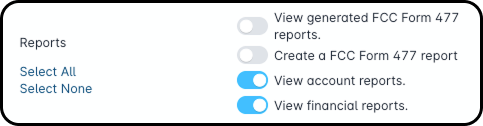
Permission Details
2. Create a FCC Form 477 report: allows you to create a FCC Form 477 report.
3. View account reports: allows you to view account-category reports (delinquency, churn, account status).
4. View financial reports: allows you to view financial-category reports (Aged Receivables, Invoiced Revenue, Daily Payments, Disbursements).
A Viewer or Editor license is required to apply filters, drill into details, or export results.
How Sonar Determines the Time Zone for a Report
Sonar reports use the System Time Zone configured in your system settings as the default for all date and time fields in reports.
This is set under Settings > System Settings and applies across the instance.

The System Time Zone affects:
- The display of dates and times in report results
- Which records fall within a report's date filter
- The day boundary used for grouping records by date
Changing the Time Zone on a Dashboard
When viewing a dashboard, you can change the time zone for that session using the time zone dropdown in the dashboard view.
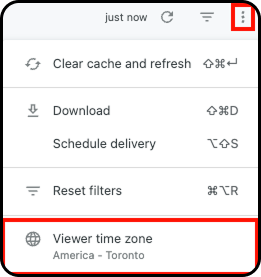
Changing the dropdown will:
- Alter the display of any time zone-enabled date fields in the report
- Alter which records fall within a date filter, since date filters evaluate against the selected time zone
This is useful when you need to view a report from the perspective of a different region (for example, an operations team in one time zone reviewing data for accounts in another).
Reports That Cannot Have Their Time Zone Changed
Some reports rely on advanced data transformations that are pre-calculated using the System Time Zone. These reports will always use the system default and cannot be changed using the time zone dropdown.
The most common example is the Accounts Receivable Reconciliation report. Other reports with similar advanced calculations behave the same way.
If you try to change the time zone on one of these reports and the numbers do not update, this is expected behavior — the report is using the System Time Zone as designed.
Common Scenarios
“Two users ran the same dashboard and got different totals.” One of the users has likely changed the time zone dropdown on the dashboard. Confirm both users are viewing the dashboard in the same time zone selection.
“My scheduled report total doesn't match a manual run.” Scheduled reports always run in the System Time Zone. If you manually changed the time zone dropdown when running the report, your manual results reflect a different time zone than the scheduled delivery. Re-run the report with the dropdown set back to the System Time Zone to match.
“I changed the time zone but the report didn't update.” The report is one of the advanced-transformation reports (such as Accounts Receivable Reconciliation) that always uses the System Time Zone.
What You Can Do
- Identify your System Time Zone — open Settings > System > System Settings and review the System Time Zone field. This is the default for all reports.
- Confirm the dropdown setting when comparing report results between users or sessions. Different selections produce different results.
- For consistent results across users, agree on a standard time zone (typically the System Time Zone) and confirm everyone is using it when comparing data.
- For advanced-transformation reports, accept the System Time Zone as the source of truth — these reports are not designed to be re-evaluated in alternate time zones.
When to Contact Support
Contact support if:
- The time zone dropdown is not appearing on a dashboard where you expect it.
- A non-advanced-transformation report does not respond to dropdown changes as described.
- You need help determining whether a specific report uses the System Time Zone exclusively.